

Clay Studio's file History and Git views answer related questions. File History helps trace recorded changes to a path. Git describes repository state, commits, and working-tree differences. Use them together to review changes before committing.
#Read file history
- Open a file in Files.
- Select History.
- Choose a recorded entry.
- Read its source, timestamp, and description.
- Inspect the revision or diff available for that entry.
Git entries show commit information. Conversation entries can identify the editing session or tool. Use Compare revisions to select two recorded versions when comparison is available.
A historical snapshot can be unavailable. Clay Studio may offer Source to inspect recorded content without being able to reproduce the original rendered preview. No file history means no available entries for that path, not that it was never changed.
#Review the working tree
Open the repository/Git placard below the project tool strip and check the repository/worktree before interpreting status. Select changed paths to inspect the diff.
Useful review sequence:
- Confirm branch and working directory.
- Read every intended changed path.
- Check for unrelated changes.
- Review actual validation results.
- Commit or publish only when you intend that operation.
Two sessions sharing a directory see the same working-tree changes. A diff can include edits by several people or agents; it is not automatically attributable to the current transcript.
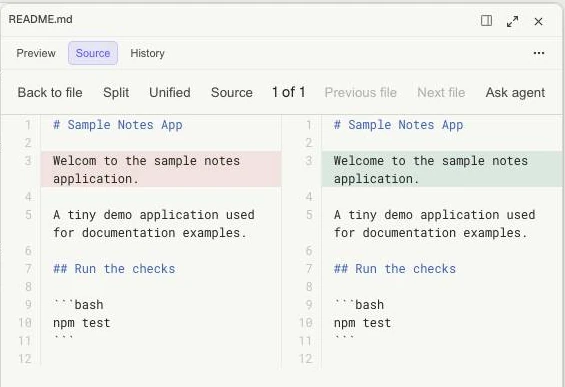
The split diff shows the removed text on the left and the replacement on the right. This sample change remains uncommitted.
#Distinguish local and remote outcomes
Saving changes a file on disk. Committing records it in local Git history; pushing sends commits to the remote repository. Merging a pull request is a further step. Ask for the step you intend and check its result.
For example, ask: “Show the current diff and run the existing check. Do not stage or commit.” Later, explicitly request the intended commit or publication if wanted.
GitHub links connect relevant work without posting a comment or merging anything merely by linking.
#Recover
Before using rewind or a Git restore operation, preserve work you need and inspect the exact target. Rewind is limited to supported recorded checkpoints; Git has its own tracked/untracked boundaries.
If history appears wrong, verify the path and worktree. Renames and similarly named files can otherwise make you compare unrelated content. See Worktrees and Stop and recovery.