

The rail holds project and Mate icons. A project's sidebar lists its conversations and saved Views. The main area shows the selected conversation; the composer sends to that conversation. The tool palette opens panels such as Files or Terminal beside your work.
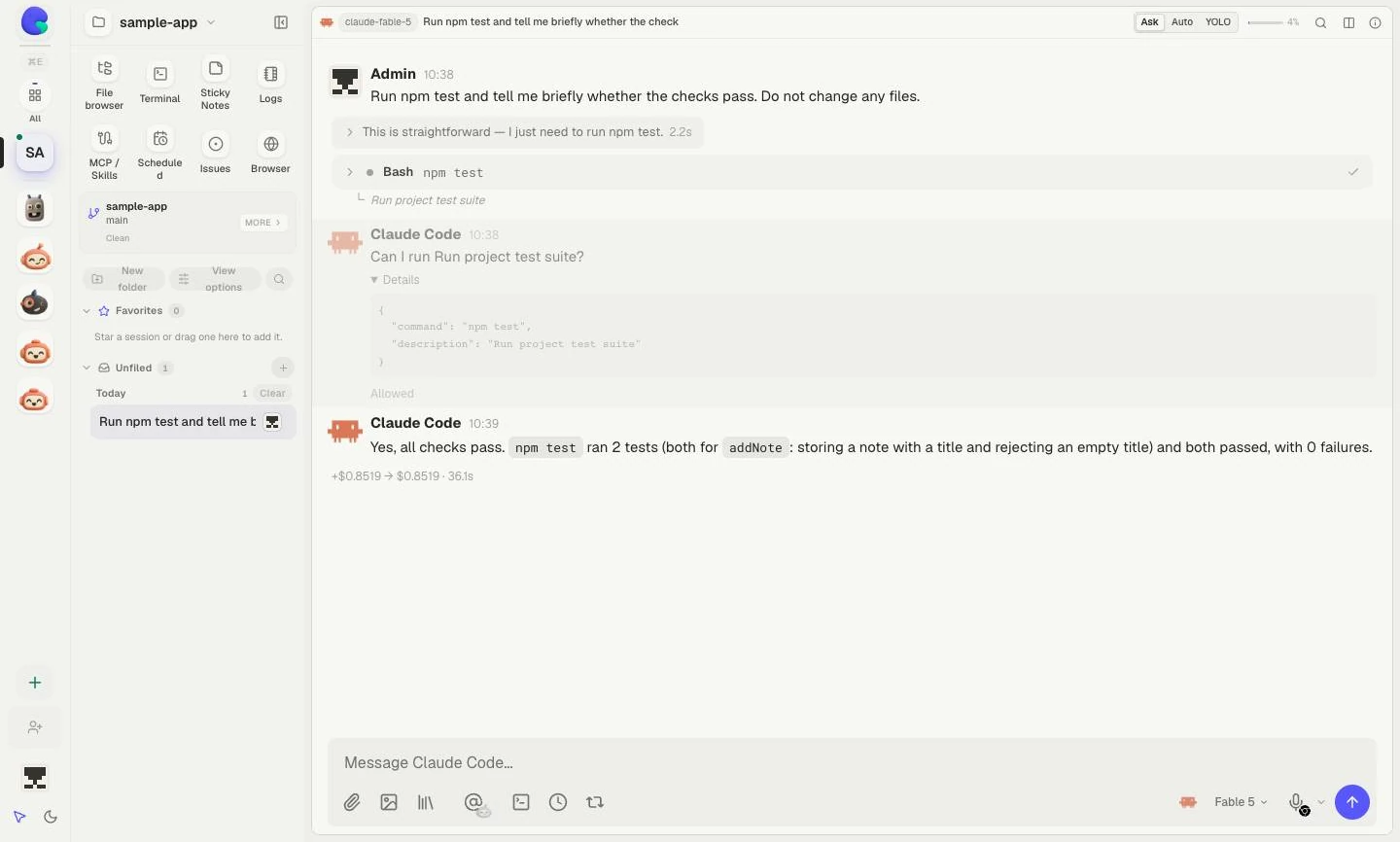
The rail is at the far left; the tool palette and session list sit beside it. The selected conversation fills the main area, with its composer below. This and the following examples use disposable data in Clay Studio 5.3.0. Select an image to view it at full size.
#Choose where to work
Select a project in the rail, expand a session folder or Unfiled, then select a conversation. A saved View opens several panes together. To add a project or Mate, select the rail's + button, labeled Add Mate or project.
Click a Mate icon to open its floating conversation; click again to enter its full workspace. Projects and Mates explains when to use each.
On smaller screens, open the navigation menu to choose a destination, then return to the conversation.
#Organize project conversations
Use a session's context menu for Rename, Move to folder, and Add to Favorites. Right-click its row to open the menu. A favorite stays in its original folder and working directory.
Choose New folder in the folder toolbar, enter a name, and confirm. To rename or delete a custom folder, right-click its header, long-press on touch, or focus it and press Shift+F10. When deleting, read the choice of what happens to its sessions.
Folders organize conversations; they do not move repository files. For example, a “Release” folder can hold planning and verification sessions that still use the same project directory.
#Sort and find work
View options controls sorting within folders: Last activity, Date created, Title, or Manual order. Optional date headings subdivide those folders. These display options are separate from a saved View, which is a pane arrangement.
Press Command+K on macOS or Ctrl+K elsewhere to open the command palette. Type a destination or command, choose a result with arrow keys, and press Enter. Escape closes it. Use session search for conversation content.
If a conversation seems missing, clear search, expand folders, and check the selected project and account before creating another one.
#Arrange the workspace
Use Split Views to keep several conversations visible. Tools open over the workspace; Dock reserves room beside the conversations. Workbench layout explains Dock, Float, Expand, and Close.
Appearance settings live in Settings → Personal → Appearance. Choose your theme, conversation layout, and typography. The layout previews show the difference between separate centered bubbles and full-width conversations with avatars. Terminal has its own font settings and retains a dark content area.