

A saved View arranges sessions and tools in one workspace. It changes what you see, not which agent owns a task or which files a session can edit.
#Add a session beside another
- Open the session to use as the insertion target.
- Open its split direction control.
- Choose Right, Left, Top, or Bottom.
- Clay Studio immediately reserves an empty pane in that direction.
- Search for a recent session or choose a provider to create one.
- Select the session and wait for placement.
The picker is centered in the reserved space. Escape dismisses it and restores the previous arrangement. It does not create a placeholder session.
The picker excludes ineligible sessions such as existing members and linked Workers. A session in another multi-session View can show Move from; selecting it moves that presentation rather than making a second independent conversation.
If creation succeeds but placement fails or the context changes, the real session can remain in Unfiled. Inspect the list before retrying creation.
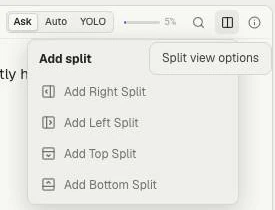
First choose a direction from the session's split control.
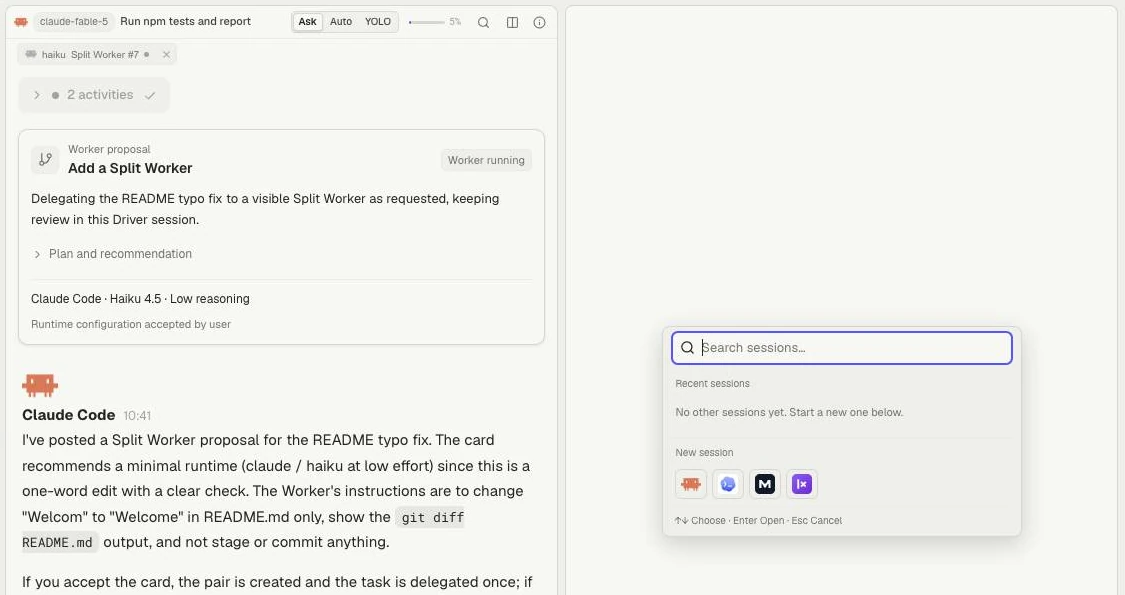
Then choose a session in the reserved pane. This demo has no other eligible recent session, so the picker offers new-session providers. Escape cancels the reservation.
#Find and name the View
The combined arrangement appears as a View in the session sidebar. Select it to return to its panes. Open the View row's menu for Rename, Add to Favorites, Move to folder, or Separate. Separate returns the sessions to individual presentation; their conversations remain distinct throughout.
#Rearrange a View
Drag a pane header to an offered drop region and release only when the target is correct. Resize using dividers. Existing multi-pane layouts also offer Arrange presets and Choose sessions.
Views support up to eight visible sessions, including linked Workers. Tool panes use the same workspace arrangement without becoming agent sessions.
When combining sessions, organization follows the drop target's actual folder, including Unfiled. If both already share a folder, that folder remains the natural destination.
#Work with tools
Open Terminal, Browser, Files, or another workbench, then choose Dock to place it beside sessions. New tools start as overlays, even if a previous arrangement was docked. Docked panes remain in the background while another tool overlays them.
Use Expand to focus a pane and restore the arrangement afterward. Closing a presentation is different from deleting its underlying session or stopping its execution.
Saved Views remember the pane arrangement, but do not save every tool's unsaved content. If a reopened Sketch viewer is empty, reopen the diagram from its conversation or saved source before using Save or Download.
See Workbench layout, Navigation, and Working directories. Saved project Views are not available for private Mate conversations.