

A Knowledge database is a table in a Mate's workspace. Its schema defines the fields, records hold the items, and saved views help you find a useful subset. Use it when the same fields recur across many items—for example a research register with title, status, source, and review date.
#Create a database and schema
- Open the intended Mate's full workspace and choose Knowledge. Databases are not available in ordinary project workspaces.
- Open the create menu and choose New database.
- Enter a database name and create it.
- Open Schema.
- Use Add field, choose names and types, then Save schema.
For a research register, keep a title field for the item name, add Status as a select field with “To review” and “Reviewed,” Source as text, and Review date as a date. Save the schema before entering records.
Supported types are title, text, number, boolean, date, select, multi-select, and reference. Select fields have options. References can point to eligible Knowledge documents or records.
Keep a useful title field and choose types when adding a field. Existing field types are locked in the schema editor. Use Required to require a value and Archived to retire an eligible field or select option while preserving its identity and recorded data. The title field cannot be archived. Renaming a field is different from creating another field with a similar name.
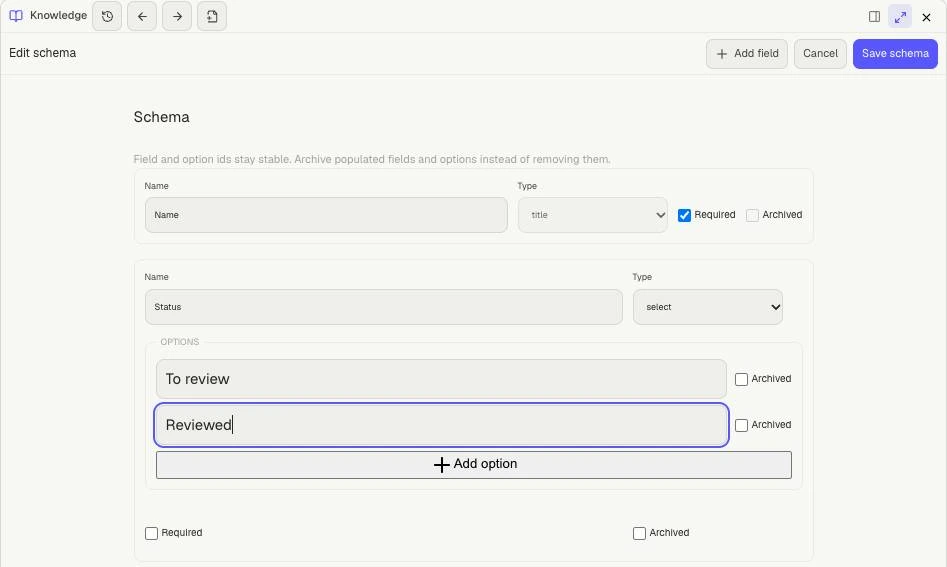
This small schema keeps the required title field and adds Status with To review and Reviewed choices. Save schema makes the new field available when entering records.
#Add and edit records
Select New record, complete the fields, and save. For example, add “Export accessibility audit,” set Status to “To review,” supply a source URL, and choose a review date. The saved row appears in the table. Select an existing row, then Edit fullscreen to change it. A record's history belongs to that record; a table view is a presentation of the same stored records.
Use Archive for a record you want removed from the active listing. Archived records switches the listing, and Recover fullscreen lets you review recovery before confirming. The same principle applies to an archived database through recoverable Knowledge.
For a reference field, choose Text item or Database record and the target database where needed. A document reference uses its stable item ID; the record input uses databaseId:recordId. If you do not know the identifier, ask: “Find the Knowledge record for the export audit and give me its reference value.” Use that returned value rather than a filename or row number.
A reference can show a missing or unavailable target. Check the selected document or record and your access. Open the record's detail to see its saved revisions.
#Save views
Open Views, choose or create a New view, and set its name, displayed columns, filter, and sorting. Select Save view. Use the Table view selector to return to a saved view.
For example, a “Needs review” view can filter the status field and sort by review date. Choose the field, an operator such as eq (equals), contains, empty, or a supported comparison, and a value appropriate to the field type. Choose a sort field and Ascending/Descending direction. A filtered-out record is not deleted.
The compact editor handles one filter and one sort. If an existing view contains several, those controls are locked while the name and columns remain editable; the existing filter/sort order is preserved. Do not recreate a complex view merely to change its name. Clear or change the selected view before concluding that an import or save lost data.
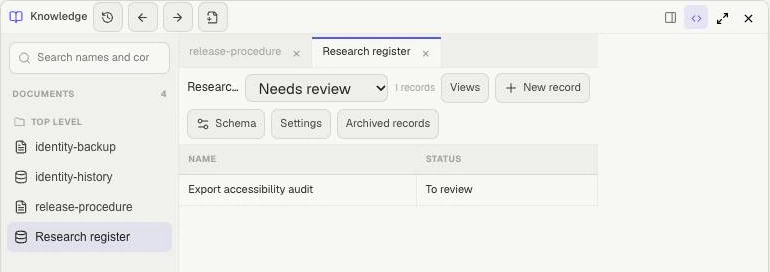
The saved Needs review view shows the matching record. The Reviewed record still exists in the database; the filter only changes which rows appear.
#Import through the assistant
Imports run through the assistant's Knowledge tools rather than a CSV-upload control. Ask the assistant to inspect a source, map fields to the existing schema, and import the reviewed rows.
Start with a small batch: “Import these three research items into this Mate's register. Show the field mapping first, then report the saved records.” The tool accepts up to 100 rows and 256 KiB per batch. Keep the original import input unchanged when retrying; corrections to already imported items should update their saved records.
If a save reports a stale revision, reload current state and reconcile your draft. If records were saved but the Knowledge listing did not update, use Retry sync and check for those records before importing again.
See Knowledge documents and Stop and recovery.