

A Mate is a collaborator you can return to across tasks. Give it a useful role—such as reviewing proposals—and examples of how you want to work together.
#Create with Clay
- Select + in the project and Mate rail. Its tooltip is Add Mate or project.
- In What would you like to add?, choose Create a Mate.
- Describe the role in the conversation with Clay. For example: “Create a reviewer who checks technical proposals for unsupported assumptions and explains tradeoffs clearly.”
- Answer Clay's questions and review the proposed Mate before approving creation.
- Open the new Mate and complete any identity interview it offers.
Try a small real task: “Review this proposal and ask me one useful question.” This helps you refine the role using actual responses.
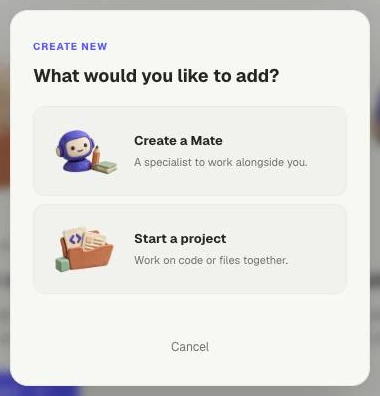
The rail's + action lets you choose a continuing collaborator or a project.
#Open Mate settings
Open the Mate's full workspace. If its conversation is floating over a project, use the control to open that Mate's workspace; clicking its rail icon again also opens it.
Select the chevron beside the Mate's name in the workspace header, labeled Open Mate settings. The dialog has three sections:
| Section | Use it to |
|---|---|
| General | Change the Mate's profile and available appearance options |
| Model | Choose an available model and supported reasoning effort |
| Prompt | Read or revise its working instructions |
Save the intended changes and wait for confirmation. The rail's context menu has profile and avatar actions, but the header chevron opens this settings dialog. Clay's built-in identity is managed by Clay Studio, so it does not offer all the same edits as other Mates.
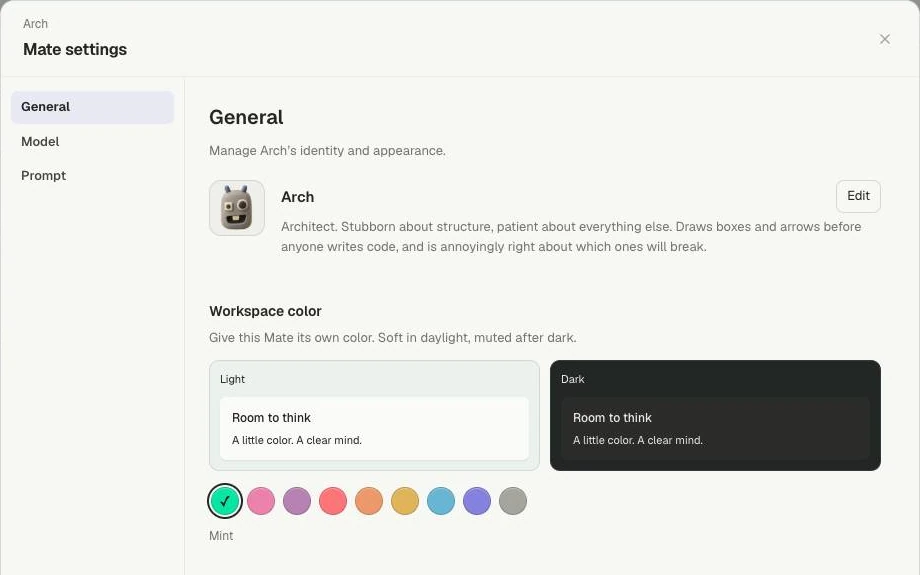
General holds identity and appearance controls. Model and Prompt are separate sections. Shown here with the built-in demo Mate Arch; no settings were changed.
#Refine the relationship
You can edit Prompt directly or ask the Mate to interview you again. For example: “Keep your research focus, but give shorter recommendations with sources. Ask me what should change before revising your instructions.”
Keep reference material, such as your review checklist, in the Mate's Knowledge. Instructions describe how to work; reference documents supply material to work with.
For separate conversations and the small-panel/full-workspace controls, continue to Mate settings and conversations.