

A workbench opens a tool beside your conversation. An overlay floats over the conversation without reducing its layout area; a docked pane reserves space alongside it. Use an overlay for a quick lookup and docking when you want to keep a reference visible while working.
#Open and arrange a tool
- Select the project or Mate workspace.
- Open a tool from its tool palette.
- Choose Dock to keep it beside the conversation.
- Drag the pane header to an offered drop region, or resize using a divider.
- Choose Float to return it to an overlay where offered.
Newly opened tools start as overlays. Existing docked panes can remain behind a new overlay. Opening a tool does not create another agent conversation.
The tools you see depend on the workspace and access. Ordinary projects have tools for files, commands, project records, and scheduled work. Knowledge and Debates are Mate-workspace tools; Me is in Clay's workspace. Linear depends on its connection, and Sketch displays a wireframe supplied through a conversation.
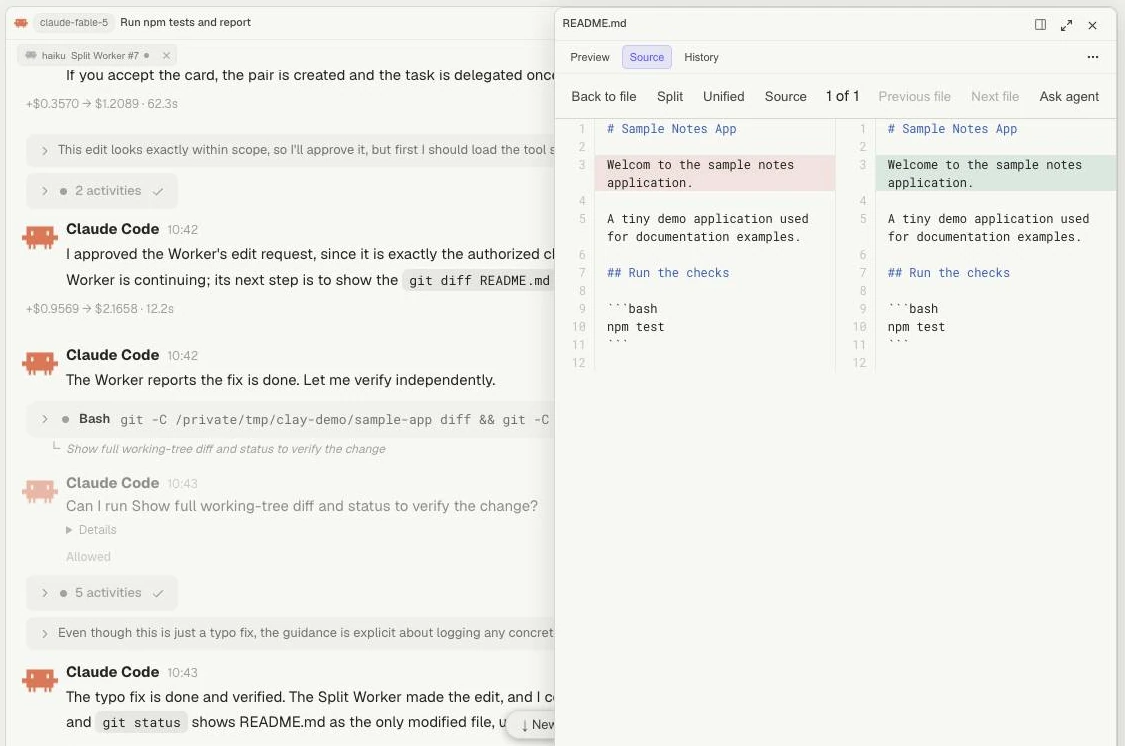
Overlay: the file pane sits over the conversation. The transcript continues beneath it.
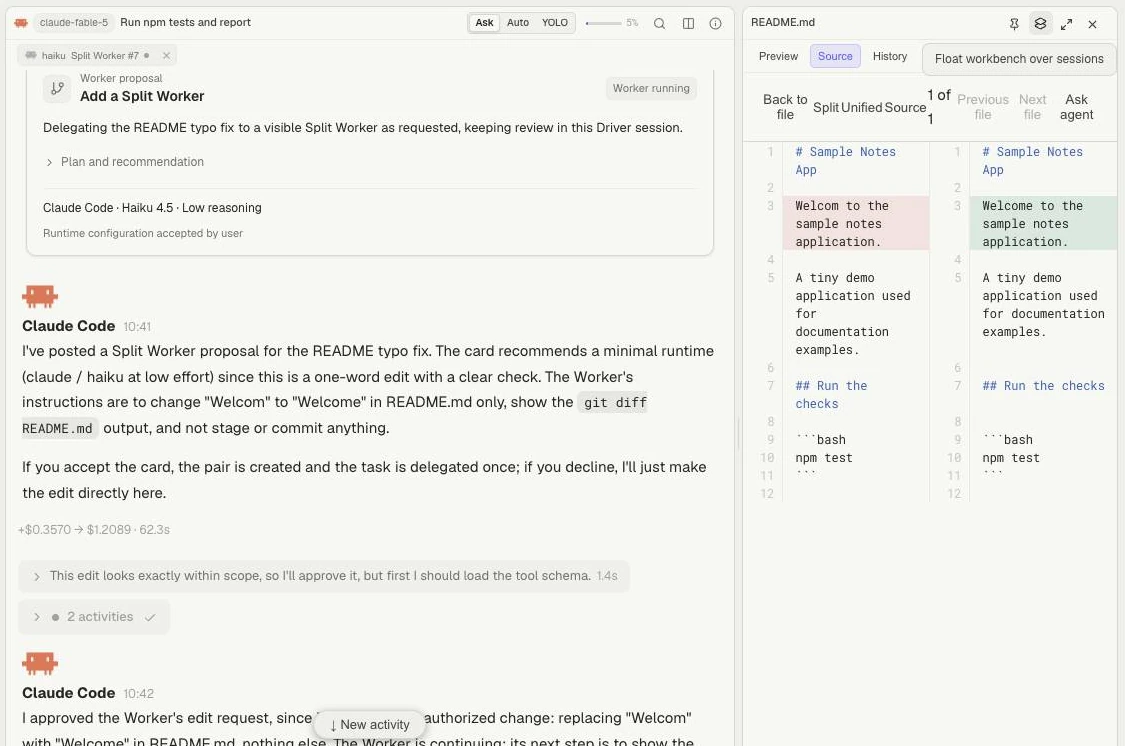
Docked: the file pane reserves its own space, and the conversation reflows beside it. These are two observed layouts of the same demo file.
#Expand or close
Expand gives a pane more workspace; restore it to return to the arrangement. Expanding Knowledge is separate from entering its document editor.
Close hides or removes the pane presentation. To stop an agent, use its Stop control. Ending Browser, closing a terminal tab, and deleting a session are separate actions with their own effects.
Terminal content keeps its dark palette while surrounding headers follow the workspace theme.
#Keep a file beside the task
Open a file and choose Pin this file to keep that path visible while selecting other files. Follow file selection returns the pane to following your selection. For example, pin a specification while reviewing implementation files in another pane. Pinning does not prevent edits to the file.
#Return to a saved arrangement
Project Views retain supported pane arrangements. They do not save all unsaved tool content or keep external processes running. A reopened Sketch viewer, for example, needs its diagram loaded before you can save or download it.
If a pane is empty, check its selected file, tab, or connection. For tool-specific steps, continue to Files, Terminal, Browser, or Sketch.