

Use Project Scheduled Tasks for work that should run at a chosen time, such as a recurring review of dependency alerts. Each run uses a Driver and Split Worker: the Driver manages the task and reviews the Worker's result.
For a reminder or recurring question in a private chat, use Mate messages instead.
#Create through an interview
- Select the ordinary project.
- Open Scheduled from the tool palette.
- Choose New.
- Answer the task interview, including outcome, instructions, timing, and execution pair.
- Review the prepared task in Scheduled.
- Select Create task yourself.
New interviews use the shared Default AI; Change default changes that interview choice. The interview prepares a proposal. It does not replace the final human Create task action.
For direct entry, open the menu beside New and choose Manual creation.
#Fill the form
Enter Name and Instructions. Good instructions define the allowed work, checks, and report: “Review new dependency alerts, report actionable changes, and make no commits.”
Set Date and Time. Times use the server local timezone shown in the summary.
- Repeat enables a cadence in days, weeks, months, or years. Weekly recurrence selects weekdays.
- Ends limits recurrence to a date or occurrence count.
- Interval repeats within each active day in minutes or hours, optionally ending after a count or time.
- Advanced custom schedule accepts a five-field cron expression.
Repeat chooses active days; Interval chooses multiple starts within each active day. For example, a weekly repeat on Monday and Wednesday with a two-hour interval creates several starts on those days. Read the generated summary to confirm the start time and any interval end before saving.
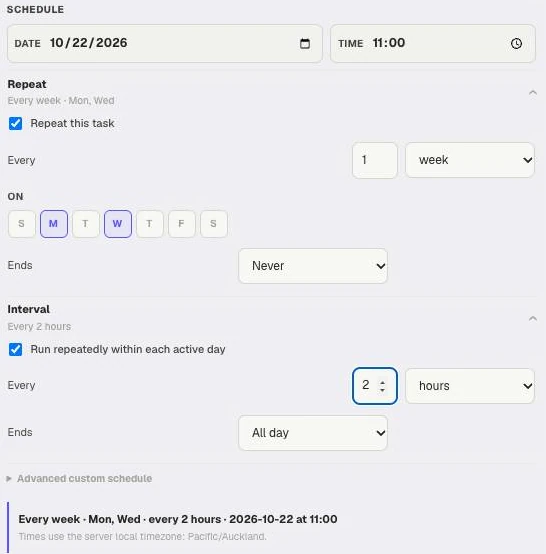
Repeat selects Monday and Wednesday; Interval adds starts every two hours on those days. The summary states the schedule and server timezone. This example was cancelled without creating a task.
#Configure execution
Choose vendor, model, and supported effort independently for Driver and Split Worker. Both must have an available model and support the tools needed for scheduled work. If the task reports Unavailable, read its reason and choose a supported configuration.
Skip a scheduled start while this task already has an active run is enabled by default. Turning it off combines overlapping starts into one queued run; it does not launch unlimited parallel copies.
#Operate and inspect
Expand a task to use Edit, Pause/Resume, Run now, Open run, or Delete.
| Status | What to do |
|---|---|
| Needs setup | Edit the task and configure its Driver/Worker execution pair |
| Unavailable | Read the reason; check provider installation, model choices, and support for scheduled work |
| Needs input | Use Open blocked run and answer the pending question or review |
| Waiting for Worker | Open the run to follow the Worker's progress |
| Driver reviewing | Wait for the Driver's review and final result |
Use Open blocked run to answer required input in the actual execution context. A completed Worker is not the same as a completed Driver review.
Pause affects future starts; inspect the active run separately. Delete removes the schedule record, so read its confirmation. Run now still obeys eligibility and overlap controls.
See Automation overlap, Drivers and Workers, and Loop and Ralph.