

Sketch turns a conversational UI idea into a wireframe you can inspect and revise. Use it for page structure, controls, and layout before implementation. It is not a running website.
#Request a wireframe
Ask in a conversation, for example:
“Show a wireframe for this project's issue detail page, with the discussion below the status and a compact sidebar.”
The agent can use current project context and display a supported clay-sketch diagram in chat. For an entire screen, describe the main regions and their relative importance. Specify desktop or mobile if it matters.
Read the diagram as a layout proposal. A button drawn in it does not implement that behavior in the application.
#Revise in the viewer
- Ask for a change, such as “Move filters above the list and show the empty state.”
- Open or follow the Sketch viewer.
- Inspect the revised diagram.
- Continue the conversation with concrete changes.
The viewer supports zoom and normal workbench controls such as widening, expanding, docking, and closing. Editing happens through conversation; selecting a drawn control is not equivalent to changing its source.
Revision requests should identify the existing screen so the agent updates the intended sketch. Use several separate sketches when comparing substantially different flows.
#Save or download
Choose Save to project, enter a Project file path ending in .puml, and select Save. Wait for the Saved to result and inspect the path if you will share or commit it.
Download downloads the sketch source. It is useful for keeping the source independently of the temporary viewer.
The viewer itself does not automatically save a file. A reopened viewer can be empty, with Save and Download disabled until a diagram is loaded. Ask the agent to reopen the sketch from the conversation or saved file.
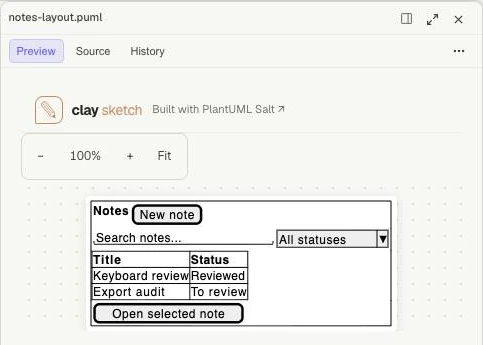
A saved .puml file can be inspected in Files with zoom and Fit controls. This is the saved-file preview; the temporary Sketch viewer has its own Save to project and Download actions.
#Rendering problems
Sketch supports a constrained Salt-based wireframe format, including common controls and nested layouts. Other UML diagram types and advanced preprocessor features are not general Sketch features.
If rendering fails, give the visible error to the agent and ask it to simplify the source. Do not assume an empty viewer means a project file was saved.
For implemented UI verification, use Browser. For reading saved source, use Files. See Workbench layout for pane behavior.