

The Knowledge workbench stores reference material in a Mate's workspace: decisions, procedures, specifications, and explanations worth finding again. Use a document for evolving prose, rather than leaving its only useful copy in a long transcript.
#Create and read
- Open the intended Mate's full workspace and choose Knowledge from its tool palette.
- Use the create action and select New document.
- Give it a meaningful document path/name.
- Write Markdown content in the editor.
- Select Save and wait for confirmation.
- Return to reading mode to inspect the rendered result.
Use Search names and contents to locate documents. Open tabs retain several references. The details area offers Outline, Links, and History. Headings make long procedures easier to navigate.
A suitable document is “Release procedure,” with prerequisites, ordered steps, expected results, and recovery instructions. For ordinary project work, keep procedures in repository documents and task outcomes in Project Logs; the Knowledge workbench is Mate-only.
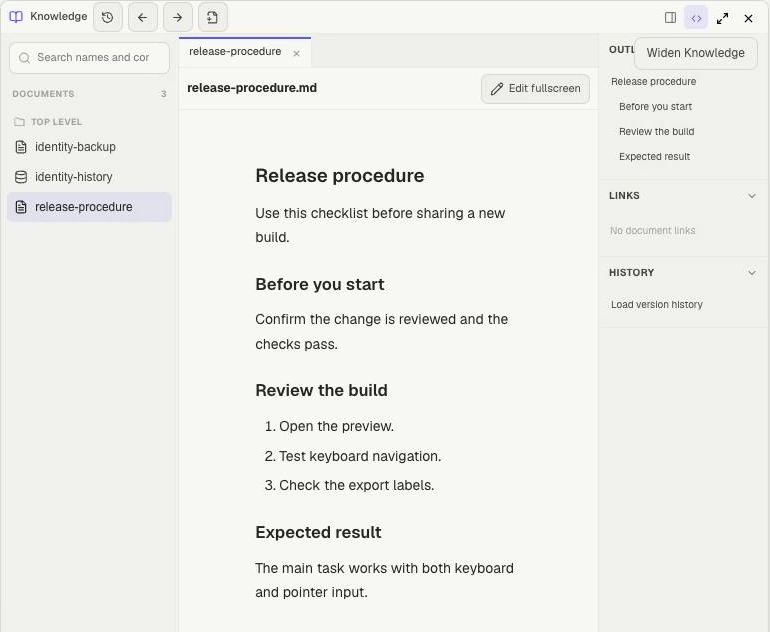
After Save and Exit editor, the document is available for reading. The explorer selects the reference; the outline jumps between its headings. This example belongs to a disposable Mate workspace.
#Edit and organize
Open a document and choose Edit fullscreen. Make changes, Save, then use Exit editor to return to reading. Expanding the Knowledge pane itself is only a layout action.
The editor distinguishes Unsaved changes, Saving draft…, Draft saved on server, and the saved document. A saved draft is recovery state; use Save to publish the document revision.
Use Move / rename for a saved clean document. Update meaningful links after reorganizing material. Relative document links and heading links can appear in Links, with unresolved targets identified.
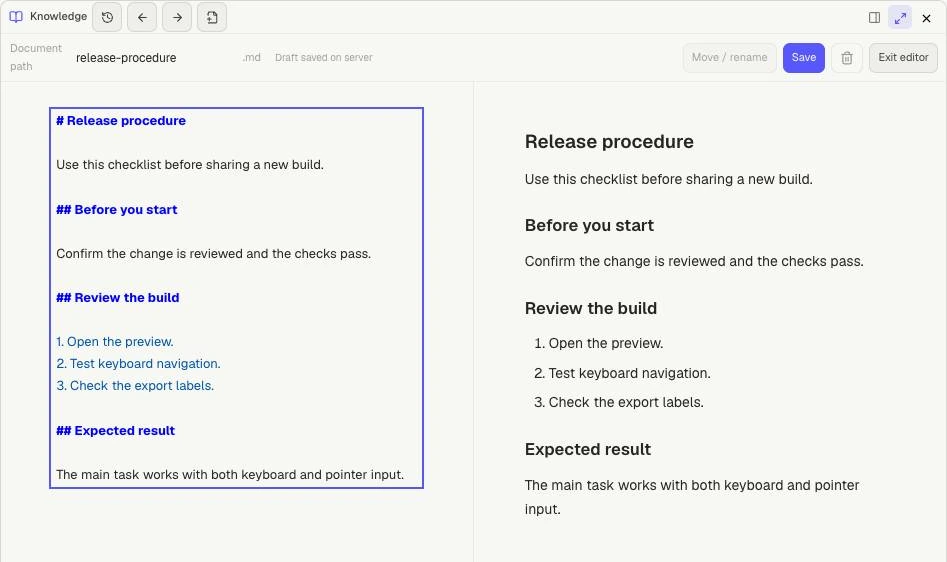
The editor shows Markdown beside its preview. Draft saved on server protects the draft; Save creates the document revision. Exit editor returns to reading.
#Resolve conflicts
If another change reaches the document, Clay Studio can offer Keep draft and Reload disk version. Copy important unsaved text before discarding it. Compare the versions and reapply the intended change against the current document.
Your document may be saved even when updating search fails. If the warning says this happened, choose Retry index sync. Check the saved document before creating another copy.
#History and recovery
Use Load version history to inspect recorded revisions. Select a version to open its read-only preview. Choose Review restore fullscreen, inspect the exact content, then Restore this version if it is the intended replacement. Merely selecting a historical version does not restore it.
Use Recover deleted documents to find recoverable content and review its history through the same explicit restore flow. Deleting a document is distinct from erasing its entire recorded history. Recovery can fail if the target changed or a path conflicts; preserve your draft and resolve the current error rather than overwriting another document.
If a document is read-only, ask its owner to make the change.
For structured records, see Knowledge databases. For durable task outcomes, see Project Logs; for reminders, see Notes.