

Files displays content from the active project or worktree. Open File browser in the tool palette to inspect files, review agent edits, and preview supported formats. Confirm the project and path before interpreting a result.
#Open and inspect
- Select the intended project or worktree.
- Open File browser.
- Navigate the directory tree and select a file.
- Choose Preview, Source, or History in its pane.
- Expand or dock the pane when you need more room.
Preview renders supported Markdown, HTML, SVG, and diagram content. Source shows underlying text with line numbers where applicable. Large text files can fall back to plain text for performance. Binary files do not become editable source.
A linked path in a response can open the corresponding file. Check its full path, especially when several worktrees contain the same filename.
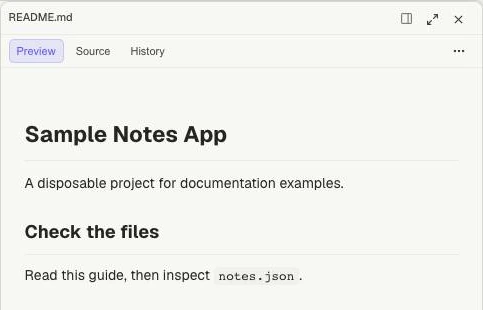
Preview renders the sample README for reading.
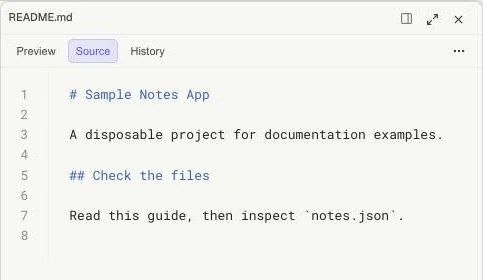
Source displays the same file as text with line numbers. These tabs change the view; the repository pane is not a general-purpose editor.
#Make an edit
The repository file pane is a viewer; Source is not a general code editor. To change a repository file, ask the project agent for a bounded edit or use your normal editor on the server's working directory.
For example: “Change only the welcome heading in this file, then show me the diff. Do not commit.” Keep the pane open to inspect the result. Markdown presentation can follow edits and display their progress.
For documents in a Mate's Knowledge workbench, use its separate Edit fullscreen → Save workflow. The Knowledge editor does not imply every repository file has the same control.
After any edit, read the current file and Git diff. Another session or external process can change the same path.
#Follow or pin
Use Pin this file in the header to retain a reference while navigating elsewhere. Follow file selection returns to tracking selection. Pinning does not lock the file against edits.
For example, pin a requirements document while opening implementation files in another following pane.
#Copy, export, and present
More file actions offers applicable operations such as Copy source, Copy formatted, Download, Export PDF, Present slides, heading-level choices, and Refresh.
Source copying preserves text; formatted copying uses its rendered representation. Present slides divides Markdown at the selected H1/H2/H3 heading level. These controls depend on file type.
Self-contained HTML previews are isolated. Do not assume relative local assets or application network requests work as they do in a running website; use Browser for that.
#History and failures
History combines available recorded edits and Git information. Older previews may be unavailable even when the recorded source remains readable. If content is stale, Refresh and confirm the worktree. For denied paths, check access and scope.