

Terminal opens a shell on the machine running Clay Studio. Use it for project commands, development servers, provider login, and direct inspection. Its current directory and OS identity determine what commands can affect.
#Open a shell
- Select the intended project.
- Open Terminal from the tool palette.
- Check the project name in the pane header.
- Confirm the current directory with
pwd. - Run a harmless inspection command such as
git status --short.
The header names the owning project and Terminal. Terminal tab names appear separately. Opening a terminal does not create a new agent conversation or a separate Git worktree.
Commands run on the server, not on your browser device. A phone's Terminal pane can therefore control the server shell.
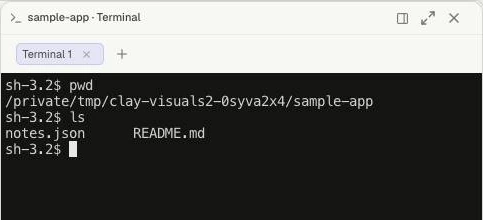
The header identifies the owning project. Here pwd confirms the disposable project directory, and ls lists its sample files. The returned prompt is ready for the next command.
#Run and stop commands
Type a command and press Enter. Read the output for a result or error. A returned prompt means the foreground command ended; it does not by itself mean success. In a POSIX shell, run echo $? immediately afterward to inspect its exit status: zero normally indicates success. A long-running development server remains a running process; closing the pane presentation is not proof that it stopped.
Use the shell's interrupt mechanism, normally Ctrl+C, for a foreground command when appropriate. Then verify whether it exited. Separate background processes can require their own process-specific shutdown.
On touch devices, the terminal toolbar supplies Tab, Ctrl, Esc, arrow keys, Alt, and common shell characters. Ctrl and Alt act as modifier toggles for the next intended key interaction. Be careful when switching focus between the shell and composer.
#Layout and appearance
Terminal initially opens as an overlay. Choose Dock to reserve workspace beside sessions; Expand uses more space. Its content retains a dark palette across themes and layout changes.
Open Settings → Personal → Appearance for terminal typography. Font size accepts whole numbers from 9 to 32 px and applies to existing and new terminals. Saving a font preference changes presentation, not shell behavior or runtime configuration.
#Common problems
If a command is unavailable, check installation and the shell's environment. A provider CLI available in one interactive shell may be absent from the daemon's environment.
If a browser cannot open the development URL, confirm the server process is still running, its listening host/port, and whether localhost refers to the Clay Studio server or your viewing device.
Avoid entering secrets in an agent transcript; use the appropriate login or settings flow. Terminal commands can still have real filesystem and network effects.
See Provider authentication, Browser, and Server settings.