

A project connects Clay Studio to a directory on the server machine. Sessions work against that directory; project records preserve context between conversations. Start with an authenticated provider and a repository you can safely inspect.
#Open or create
- Select + in the rail (Add Mate or project), then choose Start a project.
- Choose Open an existing folder, Create a new project, or Clone a repository.
- For an existing folder, browse the server to the project root and choose Open. Use Enter path, enter the server path, and select Go if you already know its location.
- For a new project, enter Project name and select Create project.
- For a clone, enter GitHub repository URL, choose the destination offered by the dialog, and select Clone repository.
Wait for creation or cloning to finish. The folder chooser describes the machine running Clay Studio. It cannot open an unrelated folder on the device displaying the browser. Private repository cloning also needs Git credentials in the server environment.
Confirm the project name and path when it opens. You can alternatively register a directory with npx clay-server --add . while the daemon runs.
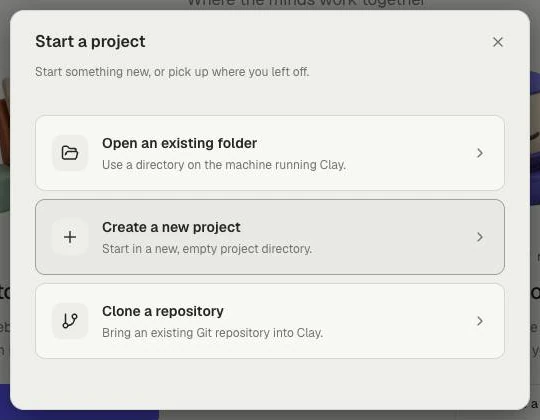
Choose the route that matches where your project files are. This is the dialog after Start a project.
#Start the first task
- Choose New session under the intended session folder, including Unfiled.
- Choose an installed provider in the inline creation row.
- Select Create.
- Check the model and permission controls.
- Send: “Inspect this repository. Explain its entry point and the command used to run its tests.”
A response should appear in the transcript. Read permission cards before approving tool actions. If files cannot be found, check the working directory.
Next, request one bounded change: “Correct the typo in the welcome heading. Show the diff and run the relevant existing check. Do not commit.”
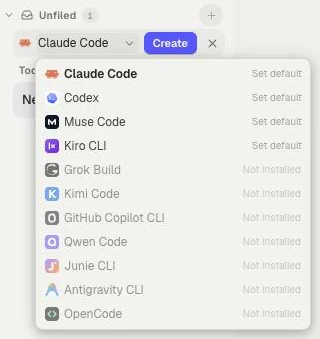
Choose an installed provider, then Create. Grey entries show providers unavailable in this demo installation; your list may differ.
#Review and return
Open Files to inspect the result and the Git view to review changed paths. Read the check result alongside the changed files.
Use Rename in the session menu to give the task a recognizable name. Keep lasting project guidance in repository instruction files such as AGENTS.md; Projects and working directories explains supported files. Another session does not automatically contain this conversation.
Before parallel edits, learn about working directories and worktrees: several sessions can otherwise change the same files.